Pages

Showing posts with label ASP.NET Core. Show all posts

Wednesday, June 7, 2017

Creating .NET Projects using the CLI

The .Net CLI or Command Line Interface. Are a set of cross platform commands packed as a tool that come as part of the .NET Core installation.

This accomplishes that We have the same set of tools on different OS (Windows, Linux, iOS) and also to allow us to have a an easier time programming on the .Net platform when we don't have Visual Studio available.
So we can code using a lightweight IDE like Visual Studio Code, and perform otherwise complicated tasks with these tools instead of having to change everything by hand.

These sets of commands allow us to create a basic App from a number of templates, get dependencies installed, add or remove dependencies, compile and Run our Apps, etc.. 

For this post we will use Visual Studio Code so I can easily show you the files created.
In case you are unfamiliar of the use of Visual Studio Code you need to create a folder in which you will work and then open that folder in Visual Studio Code like this:
- Open VS Code
- Goto File > Open Folder
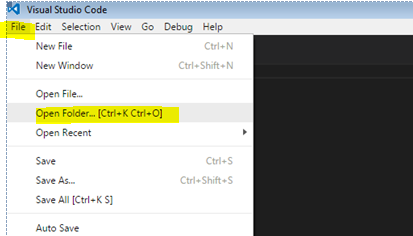


Then select your folder and click on 'Open Folder'


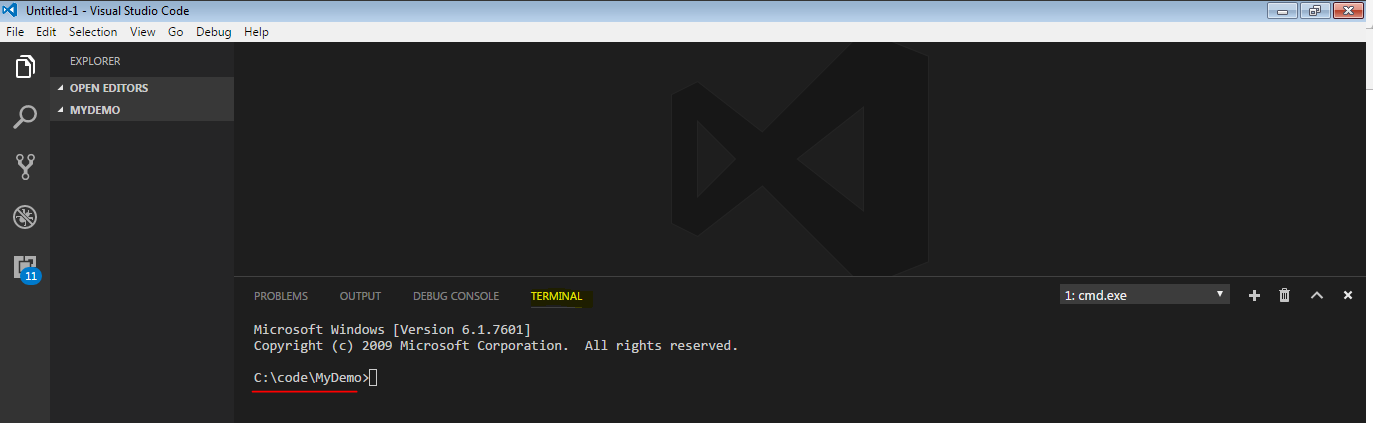
Then open the console terminal press 'ctrl + `'
And you will get the console in the lower part of your window of your VS Code:

Tuesday, June 6, 2017

Creacion de Proyectos .NET usando el .NET CLI

El .Net CLI o Interfaz de Linea de comandos. Son un grupo de comandos multiplataforma empaquetados como una herramienta que vien como parte de la instalacion de .NET Core.

Esto logra que tengamos el mismo conjunto de herramientas en distintos OS (Windows, Linux, IOS) y tambien nos permite programar mas facilmente an la plataforma .Net cuando no tenemos Visual Studio disponible.
Osea que podemos codificar usando cualquier IDE liviano, como Visual Studio Code, y lograr tareas que llegan a ser complicadas cuando se hacen a mano, de manera automatica.

Este conjunto de comandos nos permiten crear la base para nuestras aplicaciones basados en plantillas disponibles, bajar las dependencias del proyecto, adicionar o quitar dependencias, compilar y correr nuestras aplicaciones, etc.. 

En este Post vamos a usar Visual Studio Code para poder mostrarles facilmente los archivos creados por el CLI.
En caso de que no estes familiarizado con Visual Studio Code, necesitas crear un folder de trabajo que es donde armaras tu aplicacion, y ese folder tienes que abrirlo desde VS Code como el folder principal, esto se hace asi:
- Abre  VS Code
- Ve a File > Open Folder


Luego, seleccionas tu folder y haz click en 'Open Folder'


Una vez abierto el folder, para mostrar la terminal de consola presiona 'ctrl + `'
Y esta se abrira en la parte inferior de la ventana de trabajo en VS Code:


Monday, May 22, 2017

Translating on a ASP.Net Core C# Web API App using Google service

We are going to implement a translation web API on Asp.net Core using not the Google API libraries (which would cost you) but the publicly available google translation service.So basically we will interact with that Service as if we were another http client. 

Lets start by creating a new ASP NET Core Web App, we will call it 'babel':


Select that you want it to be of type Web API

After the creation is finished we will get an App with one sample controller, So lets add our own one:

Sunday, May 21, 2017

Traducir en una Web API de ASP.Net Core con C# usando Servicios de Google

Vamos a implementar una Web API para traducir un texto en ASP.Net Core usando: No las librerias de Google API (que  tienen un costo) sino que el servicio publico de traduccion de Google. Asi que, basicamente vamos a interactuar con ese servicio como si fueramos un cliente http.

Comenzaremos creando una nueva applicacion ASP.NET Core, la llamaremos  'babel':


Luego seleccionamos que sea de tipo Web API


Cuando termine la creacion de nuestro proyecto tendremos una applicacion con un controllador de ejemplo, asi que adicionaremos el nuestro:


Wednesday, March 22, 2017

ASP.NET Core and Angular 2 the Easy way

Prerequisites:
The tools we need installed on our machine before starting this tutorial are:

Node: https://nodejs.org/en/  (c'mon you already have this right ?)

ASP.net Core SDK (https://www.microsoft.com/net/download/core)
   OR 
Visual Studio 2017 (https://www.visualstudio.com/es/vs/whatsnew/) that will install also the ASP.NET Core tools. You can get the community version for free.

We can do all of this tutorial from the command prompt, but I rather show it to you using 'Visual Studio Code' so you will need Visual Studio Code if you want to do it this way.

Open Visual Studio Code:

Open an application folder:

To create a new folder we click on 'New Folder' put a name and select it.

Tuesday, March 21, 2017

ASP Net Core y Angular 2 Facilmente

Pre requisitos:
Las herramientas que necesitamos tener instaladas en nuestra maquina antes de empezar el tutorial son:

Node: https://nodejs.org/en/  

ASP.net Core SDK (https://www.microsoft.com/net/download/core)
   OR 
Visual Studio 2017 (https://www.visualstudio.com/es/vs/whatsnew/) Esto instalara tambien las herramientas de ASP.NET Core. La version Community es de uso gratuito.

Podemos realizar todo el tutorial desde el simbolo de sistema, Pero prefiero mostrarles usando el 'Visual Studio Code' ya que me parece una herramienta excelente, gratuita y liviana, Asi que necesitaran bajarse el  'Visual Studio Code' si quieren hacerlo de esta manera.